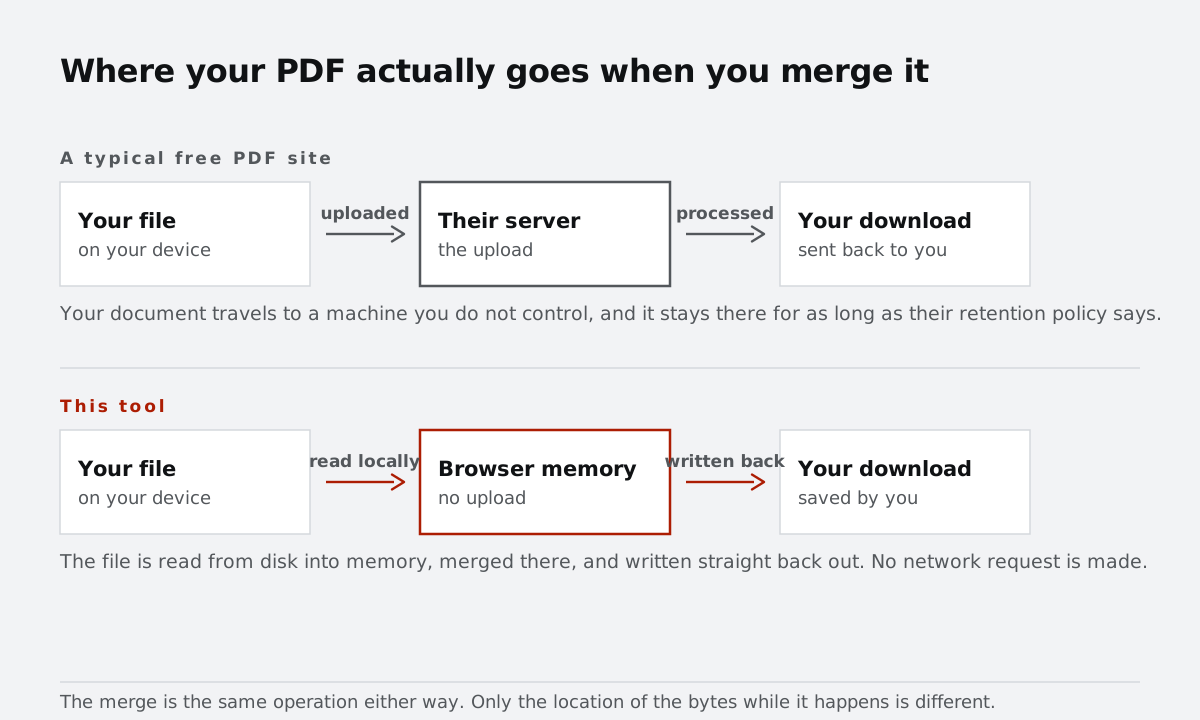
Search for "merge PDF" and almost every result asks you to upload the document to a server, wait in a queue, and download the result. For a restaurant menu that is fine. For a signed contract, a bank statement, a passport scan, or a medical record, it means handing a stranger's server a copy of something you would not email to a stranger. The alternative is to merge the file where it already lives — on your own device.
What actually happens when you merge locally
Your browser can read and write PDF files without a server. When you use the merge tool, the file is loaded from disk into the page's memory, each page is copied into a new document one after another, and the result is saved straight back to your downloads. There is no upload, no temporary copy on someone else's infrastructure, and no retention policy to trust — the document simply never leaves the machine.
The same is true of the rest of the PDF tools here: splitting, rotating, and converting pages to images all run in the browser. That matters beyond privacy, too: a local merge starts instantly and does not slow down when a server is busy.
How to merge PDFs in the browser
- Open the merge PDF tool and drop your files onto the page.
- Arrange the order: drag the rows, or use the up and down buttons for precise control. The first file becomes the start of the combined document.
- Check the page counts shown next to each file — a quick way to confirm you have the right versions.
- Click Merge PDFs and the combined file downloads as
your-file-merged.pdf.
Four things people get caught by
Password-protected files. An encrypted PDF cannot be decrypted in the browser, and every honest tool will tell you so rather than silently producing a broken file. Remove the password in the app that created it — or print it to a new PDF — and merge the unlocked copy.
Bookmarks and metadata. Merging copies page content, so text, images, and page-level links survive. Bookmarks, the outline, embedded attachments, and the original title or author do not carry over, because the merged document is a new file with its own metadata. If an outline matters, expect to rebuild it in a PDF editor afterwards.
File size. Merging does not compress anything. Two 10 MB scans become a 20 MB PDF. If the result is too big to email, run it through the PDF compressor afterwards — scanned pages shrink the most, for reasons covered in why scanned PDFs compress differently. If the scans arrived as photos, you can also shrink them first with the image compressor and rebuild the PDF with JPG to PDF.
Signatures. A digitally signed PDF can be merged, but the signature covers the original file and will not validate in the combined document. Keep the signed original if it needs to stay verifiable.
After the merge
Merging is usually one step in a longer cleanup: pull a stray page out with Split & Extract, straighten a sideways scan with the PDF rotator, then send the finished document. Because every step happens locally, you can work through a folder of sensitive paperwork without a single upload — and without an account, a watermark, or a page-count paywall.