Converting photos to PDF looks like a one-click job, and it is — until you print the result and find the images floating in the middle of oversized pages, or cropped at the edge, or sideways. The three settings that cause that are page size, orientation, and margin. Here is what each one actually does, and how to choose.
A4 vs Letter
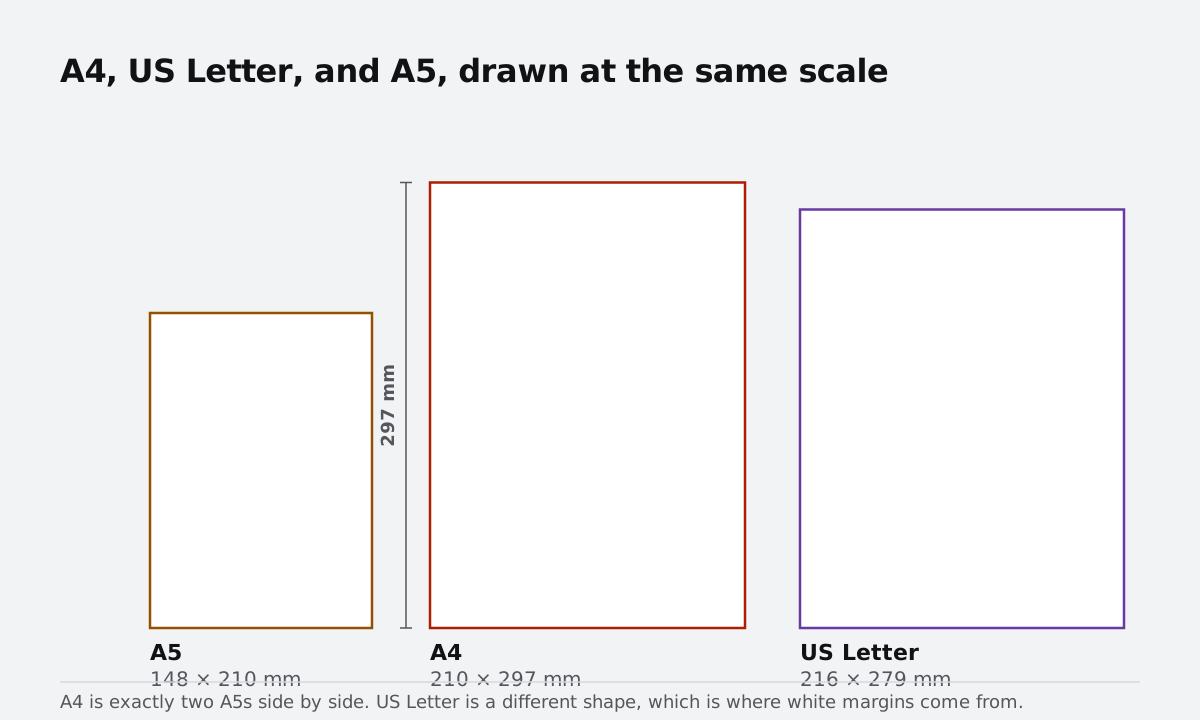
A4 (210 × 297 mm) is the standard everywhere outside North America; Letter (8.5 × 11 in) is the US and Canadian default. If the PDF is going to be printed, pick whichever your printer's paper tray is loaded with — a Letter-sized document printed on A4 paper (or vice versa) gets scaled down slightly or clipped at the edges. If it is never going to be printed, it barely matters; pick A4 and move on. The JPG to PDF converter handles the scaling for you, fitting each image inside the margins without cropping.
Orientation: auto, portrait, or landscape
Auto orientation matches each page to its photo: a wide shot gets a landscape page, a tall phone photo gets a portrait page. That avoids the awkward letterboxing you get when a landscape photo is dropped onto a portrait page — two big white bands and a small image in the middle.
There are reasons to force one orientation anyway. Print shops often ask for a consistent page shape, and a document where every page is portrait is easier to staple and flip through. In that case, pick Portrait or Landscape and accept that some images will have white space around them. Never stretch images to fill the page — the converter scales proportionally, so nothing gets distorted.
Margins, and why your printer needs them
A margin is the white space between the image and the paper edge. Choose None for a photo book or a digital document where the image should reach the edge of the page. Choose Small or Medium when the PDF will be printed on a normal home or office printer: most of those printers cannot print to the very edge of the sheet, and a full-bleed image will get a thin strip clipped off. A 10–20 mm margin keeps everything inside the printable area, and it also gives you room for hole punching and binding.
Fit to image: when page size does not matter
The "fit to image" option sizes each page to its photo instead of fitting the photo to a page. It is the right choice for digital-only PDFs — a portfolio, a receipt archive, or images headed into another app — because there is no wasted white space and no scaling. The downside is that pages end up with different dimensions, which most printers and print shops dislike.
Quality and file size
The converter embeds JPEGs and PNGs exactly as they are, with no re-compression, so nothing is lost. The flip side is size: a PDF built from full-resolution phone photos can easily be 50 MB. For email or upload forms with a size cap, shrink the images first with the image compressor (or crop them tighter with the image cropper), then convert — a 1600-pixel-wide photo is plenty for a full A4 page at normal viewing distance.
A checklist for a printable photo PDF
- Page size = the paper you will actually use.
- Orientation = auto for digital, fixed for print runs.
- Margin = small or medium if it goes anywhere near a printer.
- Images resized to roughly 1600–2000 px on the long edge before converting.
- Open the PDF once and scroll through — the page order follows the order in the file list, so fix it before you convert.