Two PDFs open side by side: both ten pages, both look identical on screen. One is 12 MB, the other is 180 KB. Run them through the same compressor and the big one drops to 900 KB while the small one grows. Nothing is broken — the two files are made of fundamentally different material, and knowing which you have tells you exactly how to shrink it.
Text PDFs are instructions, not pictures
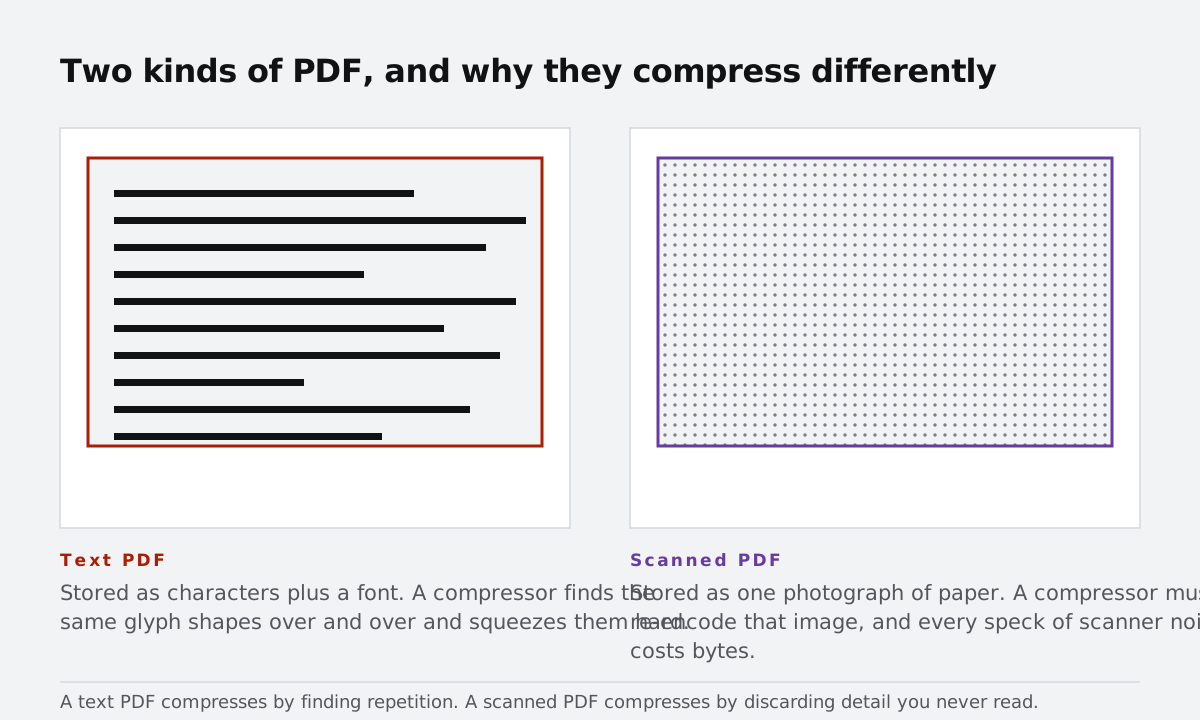
A PDF exported from Word, Google Docs, Excel, or an invoicing system does not store an image of the page. It stores text as characters plus font instructions — "draw 'Invoice' at this position in 14 pt Helvetica" — and charts as vector paths, which are mathematical curves rather than pixel grids. That is why a page of text weighs two or three kilobytes, and why it stays razor sharp at any zoom level. Text is also searchable, selectable, and copyable, because it is still text.
Because these files are already so efficient, there is often nothing left to squeeze. Converting their pages to images — the only trick a browser can perform without the original source — usually makes the file larger, and always costs you selectable text and working links. The compress tool detects that case and keeps your original rather than handing you a worse file.
Scanned PDFs are stacks of photographs
A scanner (or a phone scanning app) does not know what a letter is. It photographs the page — usually at 200–300 DPI, full colour — and drops each photo onto a PDF page. Ten pages of 300 DPI A4 scans is easily 10–30 MB, even though most of that data is the blank white paper and captured noise. This is the file type that compresses spectacularly: render each page at 120 DPI as a JPEG and the same document lands near a megabyte, with no visible difference on a screen.
The classic giveaways: the file is large for its page count, text cannot be selected or searched, and zooming in eventually shows paper texture instead of crisp letterforms. If you are unsure, try to select a word — if nothing highlights, it is a scan.
How to tell before you compress
- Try selecting a sentence. Text highlights: it is a text PDF. Nothing highlights: it is a scan.
- Compare size to page count. Roughly 1 MB per page or more almost always means images.
- Zoom to 400%. Sharp letters at any zoom = vector. Fuzzy pixels = raster.
What to do in each case
For a scan, run it through the PDF compressor at Balanced and step down only if you need more. The savings are real, and since scans have no selectable text to lose, the usual trade-off barely applies. For a text PDF that is somehow large, look for the cause instead: a single embedded high-resolution image, an attached file, or hundreds of pages. Compressing the whole document rasterises everything; a better fix is usually to re-export from the source app with image downsampling enabled — or to split out the offending pages with Split & Extract and leave the rest alone.
If what you actually need is a picture of a page, the PDF to JPG converter does that directly, at the resolution you choose. And whichever route you take, everything here runs in your browser: scanned contracts, bank statements, and ID copies are read on your device and never uploaded to a server.