You want to compress images without visible quality loss — that is the whole goal. But "quality loss" is not one thing. It depends on the format, what is inside the image, and where the image will be seen. Choose well and you can drop 60–80% of the file size with nobody noticing. Choose badly and you get blurry text, banded skies, or a file larger than the one you started with.
Here is how the three main formats actually behave, and how to compress an image with the image compressor once you have picked one.
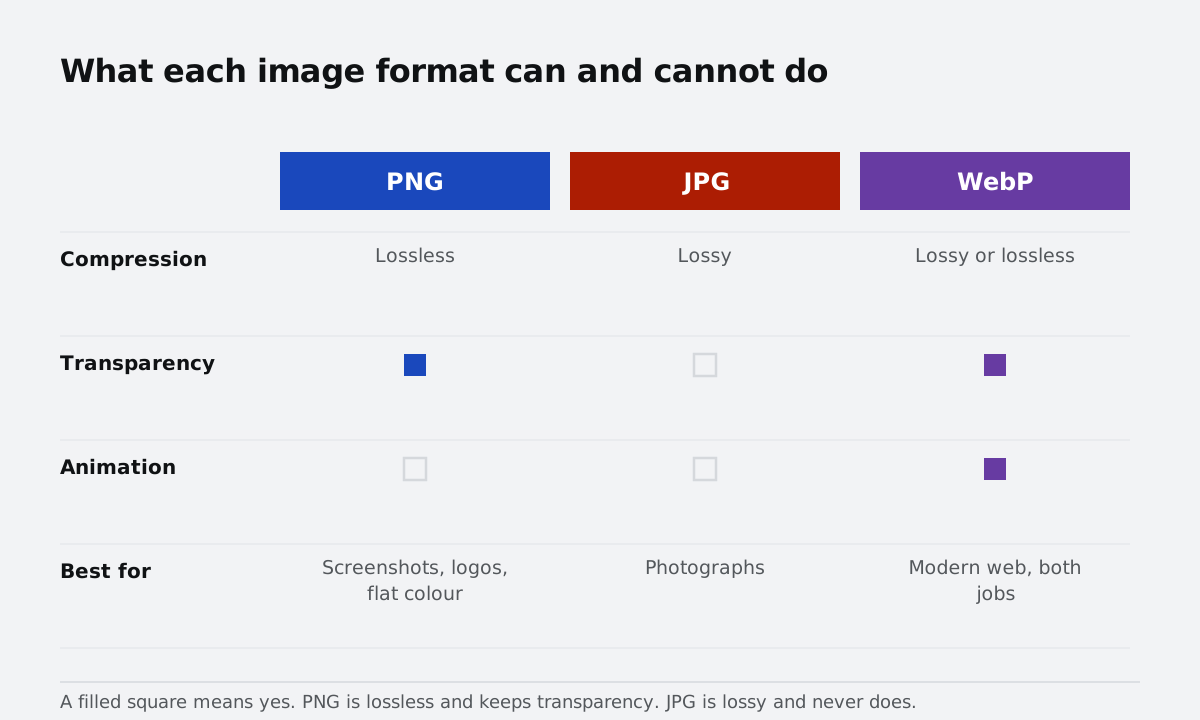
What "visible quality loss" really means
There are two kinds of compression. Lossless keeps every pixel; the file shrinks by packing the same data more efficiently, and savings are modest. Lossy discards detail your eye is less likely to miss; it can shrink a file by 90%, and it works right up until it doesn't.
Three things decide whether lossy compression looks bad:
- Sharp edges and text — these show artifacts first; thin letters turn fuzzy.
- Flat areas — skies, walls, and gradients show banding and blotches.
- Display size — a photo shown at 300px wide hides a lot of damage; the same photo at full screen does not.
Judge compression at the size people will actually view it, not at 400% zoom.
PNG: perfect pixels, heavy files
PNG is lossless. Every pixel survives, including transparency, which makes it the right choice for screenshots, logos, UI mockups, and line art — and the wrong choice for photos. A 1200×800 photo saved as PNG might weigh 1.5 MB; as JPG, the same photo lands near 150 KB. Ten times smaller.
You can still shrink a PNG without touching a pixel by reducing the colour palette and re-encoding the data stream, often saving 20–40%. That is the ceiling. If you need more, you need a different format — the PNG to JPG converter handles the common case, and PNG to WebP keeps transparency while still getting smaller.
JPG: the photo workhorse
JPG is lossy: it splits the image into 8×8 blocks and throws away fine detail inside each one, with a quality slider from 0–100. For photos, 75–85 is the sweet spot. Below 60 you start seeing blocky edges around high-contrast lines; above 90 the file balloons and the difference is invisible.
- Photos only. Never JPG for text, screenshots, logos, or charts — the artifacts are obvious.
- Never re-save the same JPG. Every save loses a little more; work from the original.
- Strip EXIF data. Camera metadata can add 10–100 KB you do not need.
- Resize before you compress. More on that below.
Chroma subsampling is worth knowing about: most JPG encoders store colour at half resolution because human eyes are bad at colour detail. It saves a lot and costs almost nothing visually, so leave it on.
WebP: usually the best default
WebP does both lossless and lossy. At the same visual quality it is roughly 25–35% smaller than JPG, it supports transparency (which JPG does not), and it handles animation. Lossy WebP at quality 75–80 beats JPG for photos; lossless WebP beats PNG for screenshots and graphics by about 20–25%.
Browser support is now effectively universal. The remaining gaps are older email clients, some CMS upload pipelines, and a few desktop tools. Keep the original file and you lose nothing by trying WebP first — the format converter does the whole set in one place.
A decision rule you can use in ten seconds
| Image type | Format | Setting |
|---|---|---|
| Photo, transparency not needed | WebP | Lossy, quality 75–80 |
| Photo that must be JPG | JPG | Quality 80, strip EXIF |
| Screenshot or UI | WebP lossless | Lossless |
| Logo with transparency | WebP lossless | Lossless |
| Text-heavy graphic | PNG | Lossless |
| Animated image | WebP | Quality 70–75 |
Resize first — it matters more than the format
The single biggest win is not format choice, it is dimensions. A 4000px image displayed at 800px wide is wasting about 90% of its bytes, and no encoder setting fixes that. Resize to the largest size the image will actually render at; on a retina screen that is 2× the CSS width, so a 400px thumbnail gets an 800px file and nothing bigger. Compress after you resize, not before.
Check the result instead of guessing
Open the compressed file at 100% zoom and look at edges and text next to the original. If you cannot spot a difference at 100%, your visitors will not either. Keep lowering quality until it just starts to show, then step back one notch. That is your file. The compressor's before/after preview and exact size readout make this loop fast — and because it runs locally, you can try ten settings in the time an upload queue would take to accept one file.