A WiFi QR code lets a guest join your network by pointing a phone camera at a printed square instead of typing a long password. Most modern phones recognise the format natively — there is no app to install. Here is how to scan one on each platform, what to do when nothing happens, and how to make your own with the WiFi QR code generator.
Scanning on iPhone
- Open the built-in Camera app — not a third-party one.
- Point it at the code and hold steady until a yellow notification appears at the top of the screen.
- Tap that notification to join the network. The password is filled in for you.
If the network is hidden, iOS will still offer to join but may ask you to confirm; if the code uses the older WEP security type, iOS 11 and later will refuse to connect. That is an Apple restriction, not a code problem — move the network to WPA2 or WPA3 and regenerate.
Scanning on Android
- Open the Camera app, or Google Lens if your camera does not scan codes.
- Hold the code in frame until a link chip appears, then tap it.
- Android shows the network name and offers Connect. Confirm to join.
Samsung phones also include a QR scanner in Quick Settings, and stock Android has one in the Wi-Fi menu under Add network — useful when a camera app refuses to scan for some reason.
What to do when a WiFi QR code won't scan
- Too small or too far. The code should fill a good portion of the frame; print it at least 3×3 cm for a table card.
- Low contrast. Black on white scans best. Dark colours on light are usually fine; light on dark or coloured-on-coloured often fails.
- Glare or damage. Laminate or glass can catch a reflection at the exact angle — tilt the phone or move the light.
- Wrong security type. If the code says WPA but the network is WPA3-only, some older phones refuse. Regenerate with the current setting.
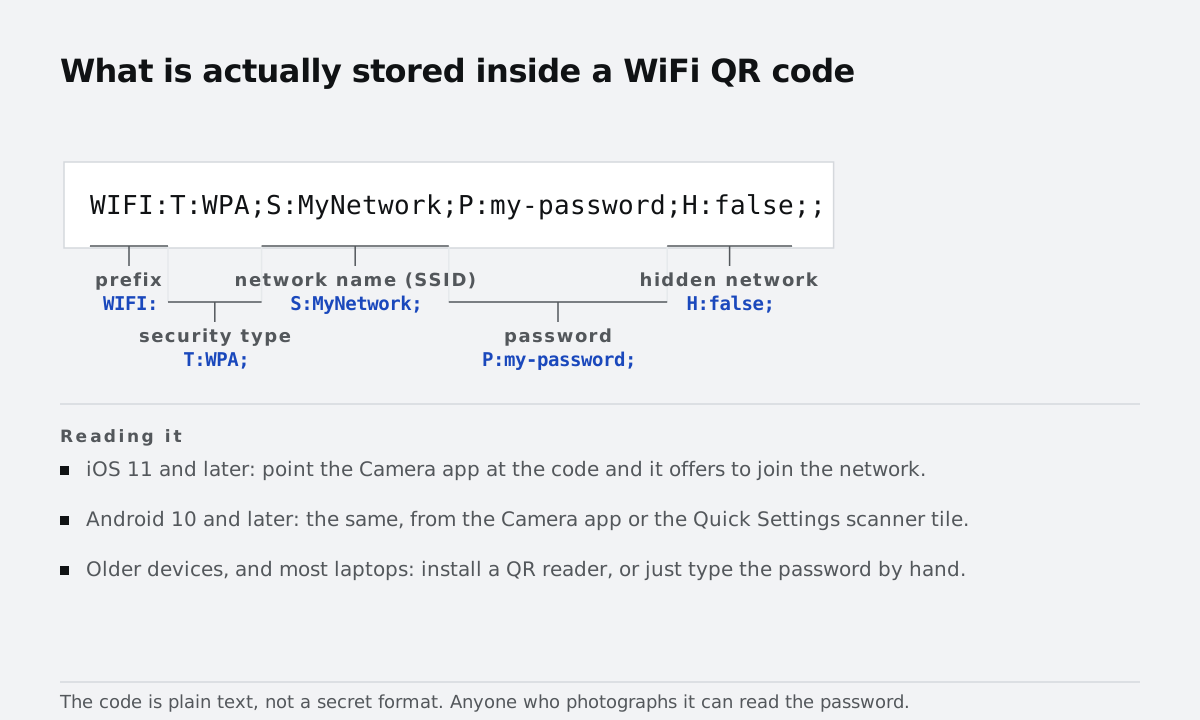
- Special characters in the password. Characters like
;,:, and"must be escaped in the code. A good generator does this for you; if you hand-made the code, that is the first thing to check.
How to make your own
Open the WiFi QR generator, type the network name and password, pick the security type, and the code appears instantly. Download the PNG for a quick print or the SVG if you want to scale it up for a poster or menu card without any blur. The password is embedded in the image itself, so anyone who can scan the code can join — which is exactly the point for a guest network, and the reason to keep the main network's password off a public card.
For anything that is not a WiFi network — a menu link, a contact card, a plain URL — the QR code generator covers those formats too. Both tools run entirely in your browser, so the password you type is never sent to a server or stored anywhere.